Warning: Undefined array key 0 in /home/yatsuba/yatsuba.com/public_html/wp-content/themes/amaru/functions.php on line 406

Warning: Attempt to read property "parent" on null in /home/yatsuba/yatsuba.com/public_html/wp-content/themes/amaru/functions.php on line 407

Warning: Attempt to read property "term_id" on null in /home/yatsuba/yatsuba.com/public_html/wp-content/themes/amaru/functions.php on line 413

Warning: Attempt to read property "cat_name" on null in /home/yatsuba/yatsuba.com/public_html/wp-content/themes/amaru/functions.php on line 413

windows環境でファイルの拡張子を表示させる方法
web

拡張子とはファイルの形式を示すものでファイル種類によって異なります。例えばテキストなら「.txt」エクセルなら「.xls」HTMLファイルなら「.HTML」です。ウェブサイト製作には様々なファイルを扱うので、制作の前に拡張子をあらかじめ表示させておいた方が便利です。

拡張子を表示させる

※下記はwindows10の手順です

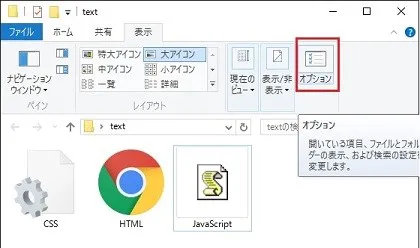
[表示]→[オプション]を選択し、フォルダオプションダイアログを表示します。
non-filename-extension

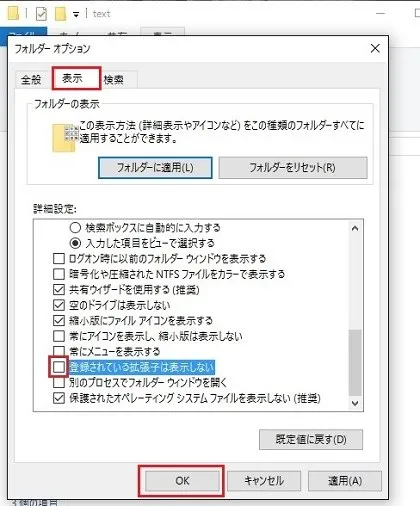
フォルダオプションの[表示]タブをクリックして、詳細設定の「登録されている拡張子は表示しない」のチェックを外し、OKをクリックします。
non-filename-extension

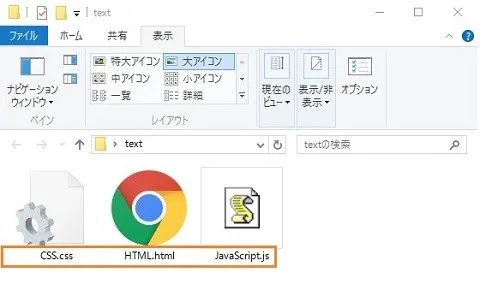
ファイルの拡張子が表示されるようになりました。

non-filename-extension

拡張子の直接変更についての注意

拡張子を表示させた状態では、F2キーなどでファイル名と共に拡張子を変更する事も可能です。 互換性のあるファイル形式であれば直接変更しても問題ありません。 例えばテキスト、HTML、CSS、JavaScriptはそのまま書き換えても問題ありません。

ただテキスト⇔エクセルなどの互換性がないファイル形式に変更する場合、変なデータが混じったり正常にファイルが作成されなかったりします。その場合は正規の手段でファイルを作成しましょう。 (テキスト→エクセル:テキストファイルをエクセルから開いてエクセル形式で保存など)


Warning: Undefined variable $category in /home/yatsuba/yatsuba.com/public_html/wp-content/themes/amaru/content.php on line 79

Warning: Attempt to read property "name" on null in /home/yatsuba/yatsuba.com/public_html/wp-content/themes/amaru/content.php on line 79

の記事

eyecatch

ウェブサイトの長さの単位一覧

eyecatch

JavaScriptの正規表現

eyecatch

サイドバーのメリット・デメリットとサイドバー不要論

eyecatch

投稿やカテゴリを任意の順番に並び替えるプラグイン

eyecatch

カスタムヘッダー機能を利用する

eyecatch

ウェブとウェブサイト


Warning: Undefined variable $category in /home/yatsuba/yatsuba.com/public_html/wp-content/themes/amaru/content.php on line 84

Warning: Attempt to read property "count" on null in /home/yatsuba/yatsuba.com/public_html/wp-content/themes/amaru/content.php on line 84
HOME